Have a feed but no design for it? Attach the sheet when you generate static ads. Instead of a batch of finished ads, you get a template designed for the sheet — one design per size, with the parts that change per row already bound to its columns — and you land in the editor to check it.
Availability: personalized creative sets are rolling out to teams gradually. If you do not see the Data chip in the studio, your team does not have it yet. Contact support to ask for access.
Before you start
- A data sheet with status Ready in the brand — see Data sheets.
- Start from the brand. The Data chip is only in the brand's Static Ad Generation Studio, not in the team Static Ad Playground.
1. Attach a sheet
- Open the brand, choose Static Ads, then Generate Static Ads.
- In Creative concept, choose Data in the composer toolbar (Design a template from one of the brand's data sheets).
- Under Generate from a data sheet, pick a sheet. Each shows its row and column counts.
The chip now shows the sheet's name and counts. Select × on the chip to remove it.
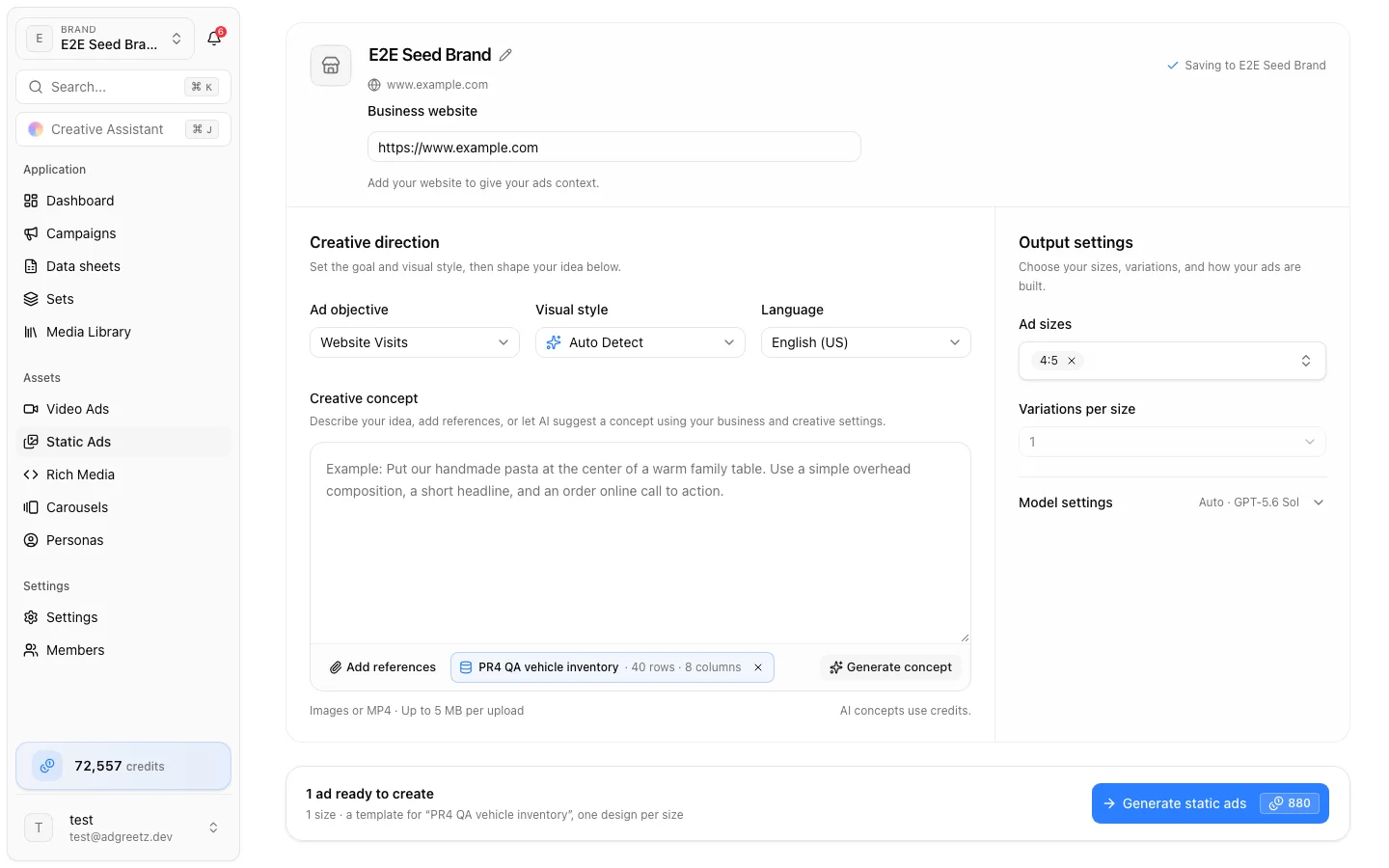
With a sheet attached:
- The ads are built as Editable layers — you cannot switch to finished images.
- Each size gets one design: variations per size are fixed at 1.
- The footer summary reads like 3 sizes · a template for "Spring inventory", one design per size.
2. Generate
Fill Creative direction and Output settings as usual (see Create static ads), then choose Generate static ads.
The designer sees the sheet's column names and types and a few sample rows. It designs one master per size and binds the parts that should change per row — name, price, image, offer — to matching columns. In the same generation it proposes a mapping. You are charged for the generation only; the mapping proposal adds nothing.
Sample rows are treated as data. Text in a cell is never followed as an instruction.
3. Check the template in the editor
When the master is ready, the generation page opens it in the layer editor with the Data panel open, the sheet selected, row 1 shown, and the draft mapping loaded. You see:
- The mapping was drafted for this sheet. Check each variable, step through a few rows, then select Review set. — or, when no draft could be made:
- Map the template's variables to the sheet's columns (Auto-map helps), step through a few rows, then select Review set.
This is a checkpoint. Nothing becomes an ad until you choose Review set and approve a set.
- Check each variable's binding.
- Step through several rows and open the Preview grid to catch long names or missing images.
- Adjust the design if needed, save it, then choose Save mapping.
- Choose Review set.
The full walkthrough is in Personalize a static ad.
Regenerate or add sizes later
When you regenerate the generation or use Add sizes:
- It designs from the sheet's current version, so replacing the sheet with a fresh feed never breaks it.
- It still makes one master per size.
- A mapping you already saved for the template and sheet is kept; a new draft never overwrites it.
- If the sheet was deleted, the run stops before anything is charged.