Product ads are short videos built from product photos. Start from the team Product Ad tile, or from a brand: on the brand home choose Video, then Hypermotion, Catalyst, or Metaphor. The playground is the studio — there is no separate brand dialog, and generation stays on this page.
Before you start
- Correct team and enough credits
- At least one product photo (more angles keep the product faithful)
- An existing brand, or a Brand name and Website for a new one
- A cast member only when the ad type is Catalyst
Open the studio
- On the team home, under What will you create today?, choose Product Ad.
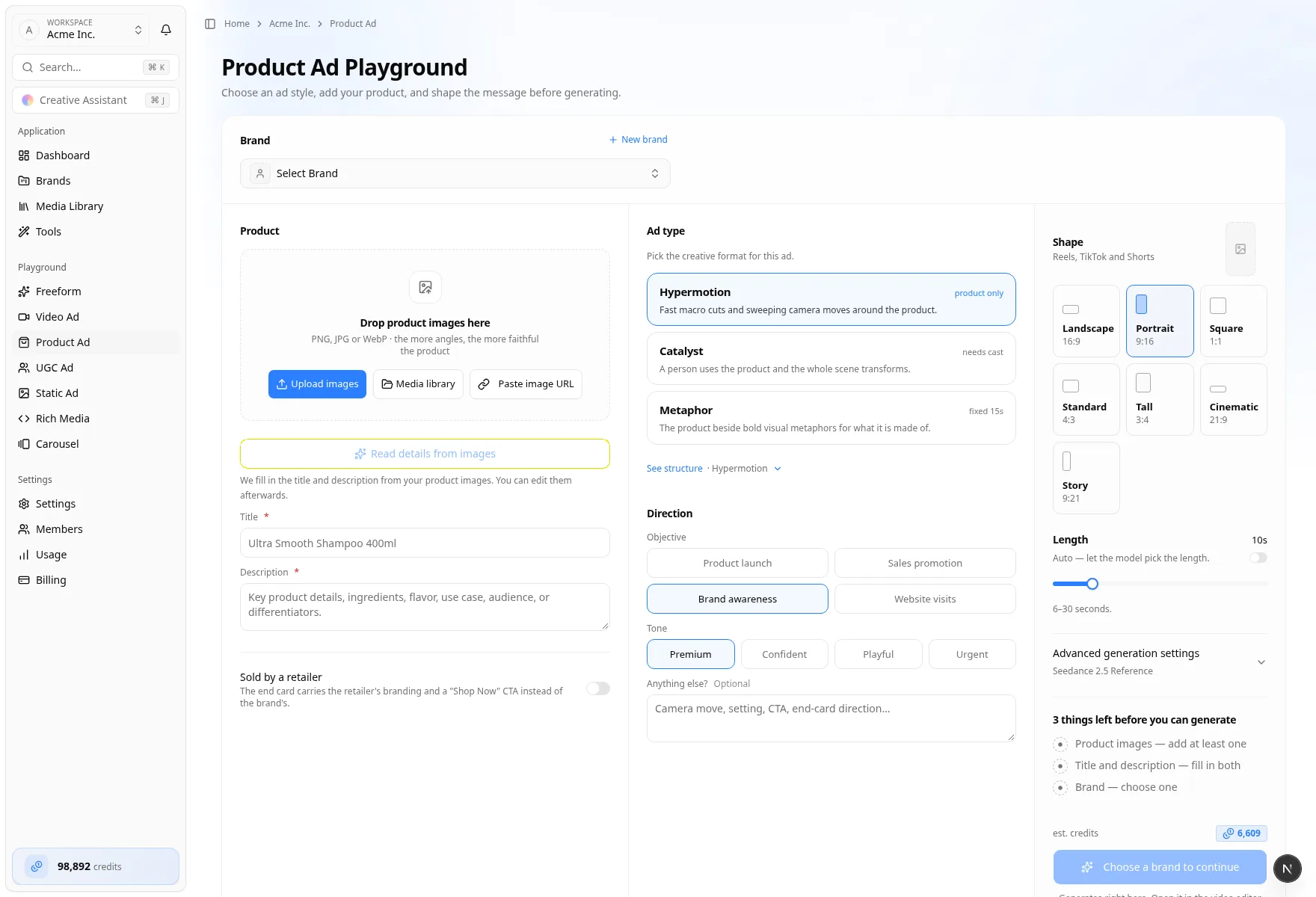
- The page title is Product Ad Playground. The hint reads Choose an ad style, add your product, and shape the message before generating.
From a brand, choose Video on the brand home, then the ad type. The same studio opens with that brand locked (no Select Brand control) and the ad type already picked.
Brand is a row at the top (Select Brand or New brand). Under it, Product sits beside Ad type and Direction, and Shape plus Length are on the right. Recent product ads sits under the studio.
Ad type
The middle column opens with Ad type. Each card shows a tag and a one-line summary. See structure opens the suggested beats for the type you picked (for example · Hypermotion).
| Type | Tag | Use it when |
|---|---|---|
| Hypermotion | product only | Fast macro cuts and camera sweeps around the product. No cast. |
| Catalyst | needs cast | A person uses the product and the scene transforms. Choose a cast member. Length stays in a shorter range. |
| Metaphor | fixed 15s | The product is set against a visual metaphor. Length is always 15 seconds, the video model is locked, and only some shapes are available. |
Brand, product, and concept
| Area | What you set |
|---|---|
| Brand | Select Brand, or New brand with Brand name and Website. Switch back with Existing. |
| Product | Images (upload, Media library, or Paste image URL). Read details from images fills Title and Description. Both are required. |
| Sold by a retailer | Optional, on the product column. The end card uses the retailer's branding and a Shop Now CTA. Retailer name is required while this is on. |
| Ad type and Direction | Ad type, then Objective (Product launch, Sales promotion, Brand awareness, Website visits) and Tone (Premium, Confident, Playful, Urgent). Anything else? is optional. |
| Cast | Catalyst only, under the ad type. Choose who presents the product on camera. Sources are Brand persona and Approved character. The cast member uses one image slot. |
Output settings
- Shape — Portrait, Landscape, Square, and the other ratios the type allows. The label under Shape names the placement (for example Reels, TikTok and Shorts).
- Length — depends on the ad type. Hypermotion offers Auto or a seconds slider. Catalyst uses a 6–15 second slider with no Auto. Metaphor is fixed at 15 seconds.
- Video model — under Advanced generation settings. Metaphor picks the model for you (Locked).
- Optional motion and audio references live in the same advanced section.
The footer lists what is still missing (3 things left before you can generate) and the button names the first one (Choose a brand to continue, then the product and the rest). When the brief is ready, the button matches the type (Generate Hypermotion Ad, Generate Catalyst Ad, or Generate Metaphor Ad). The note under the button reads Generates right here. Open it in the video editor any time.
While it generates
The studio stays on this page and shows the steps (images uploaded, shots planned, generating, finishing). You can leave the page — the job keeps running.
When the ad is ready, watch it here, Download video, or Open in full editor. Replace this video… spends more credits and replaces the current clip. Adjust brief starts a separate ad and leaves the current one in Recent product ads.
On Recent product ads, Watch here plays it in the studio, Open goes to the editor, and Reuse brief loads that ad's settings. A restored brief can still be missing pieces (for example a brand that was removed).
Finished product ads also appear in that brand's Video Ads library and in Recent video feeds. Review and deploy from the editor — Create video ads.